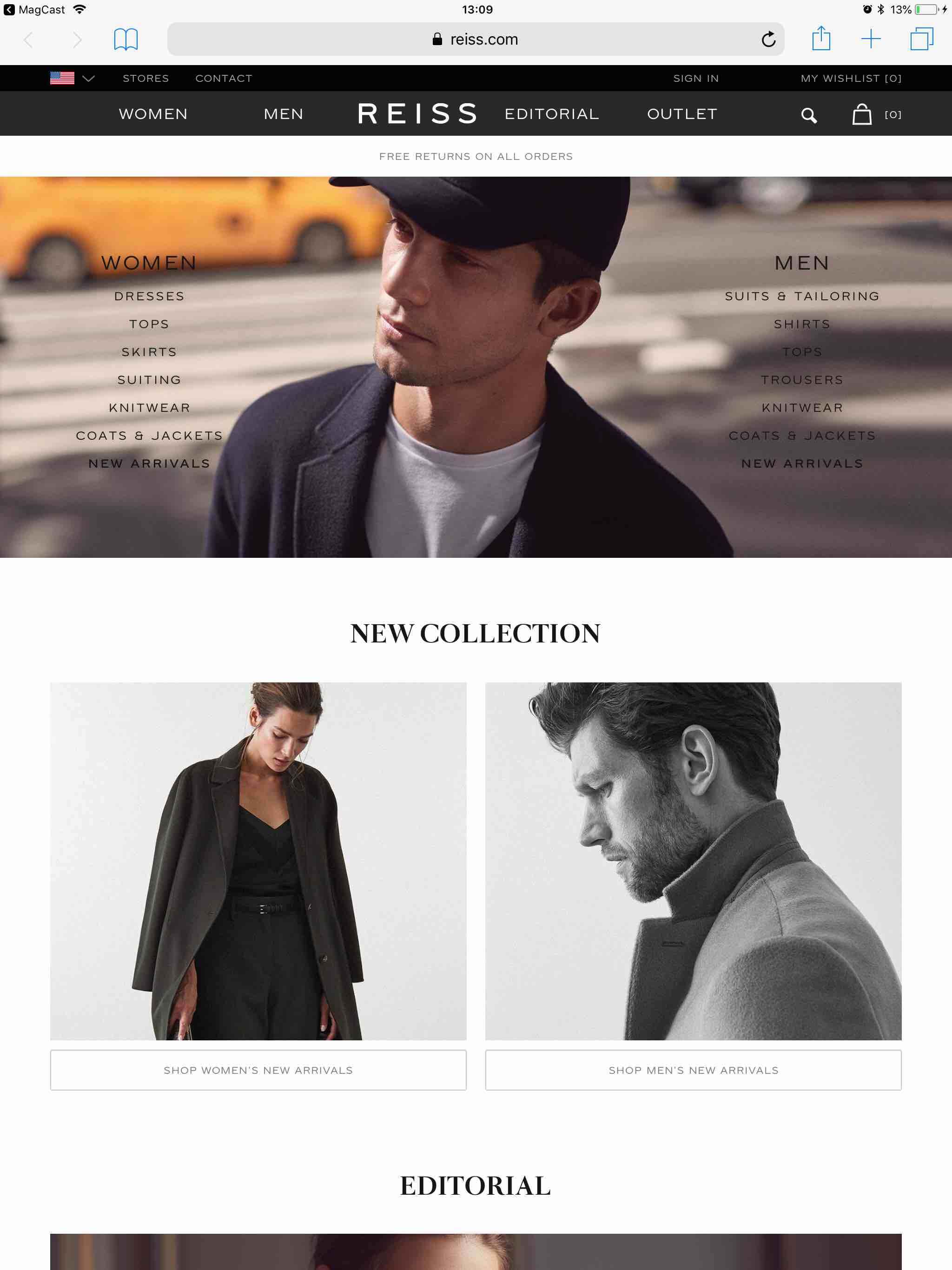
Inserting Full Page Ads into Your Magazine App
In nearly all cases, you'll be getting a .png, .jpg, or .gif from an advertiser / agency NOT a PDF like you're used to working with in importing to MagCast.
Working with full size images rather than PDFs takes a couple of extra steps, but you get better results than when converting the image to a PDF.
This section assumes the following:
- You already have a 768x1024 image delivered to you by an advertiser or you've made one.
- The ad is in .png, .jpg, or .gif format.
- The ad is NOT a .pdf.
Step 1: Add a New Page in MagCastApp.com
Use the Issue You're Inserting the Ad Into
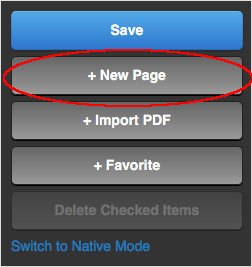
Step 2: Edit the New Page
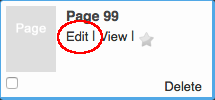
|
Step 3: Click Settings

|
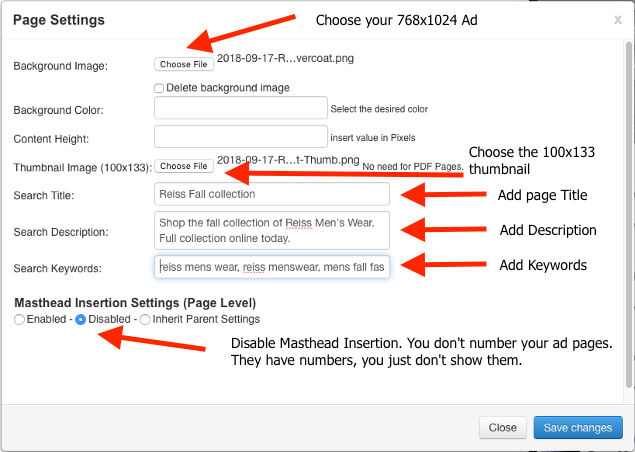
Step 4: Upload Ad Images; Add Text; Disable Masthead Insertion
|
Step 5: Add Your Link
Step 5a: Drag the icon circled in red above ANYWHERE onto the page.
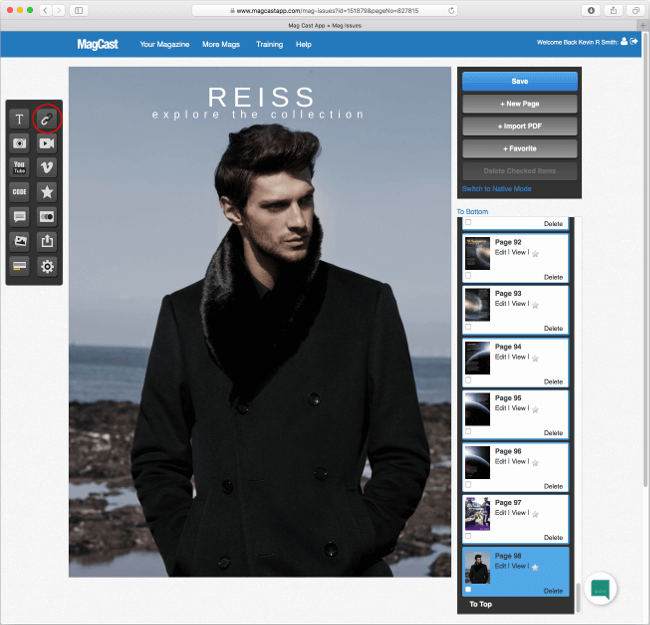
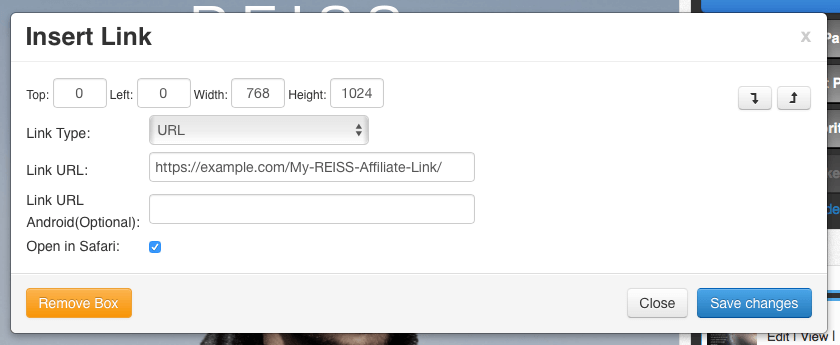
Step 5b: Set the dimensions. Add the link. Set Safari opening option.
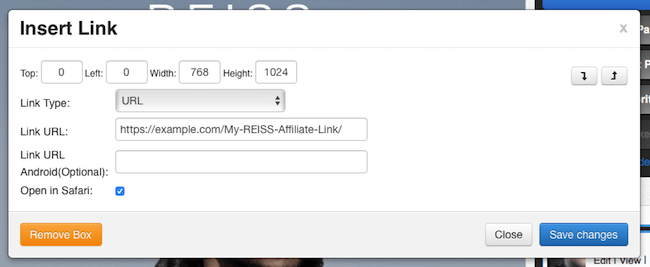
You'll get this popup where you'll do three things:
- Set the ad's position and size
- Insert your link
- Choose your Safari opening options
Setting the Ad's Position and Size
You can drag the link box around anywhere you'd like OR manually enter how many pixels from the top and left you want the ad to start.
Here were manually setting it to 0,0, the top left most pixel in your magazine.
We're also setting the size to 768x1024 so the entire page is clickable.
If you're using a Call-to-Action button, product box, icon, or other clicky item in the ad, you can drag-and-drop (and resize) link boxes around as many of those elements as you'd like.
Copy-and-paste the Ad's Destination Link
This is the URL you stored earlier in the Ad Tracking spreadsheet and is permanently associated with this ad.
Choosing your Safari Opening Options
If your audience is >4 years old, best practice is to open in Safari. It's a better user experience and allows cookies to be set.
|
Step 6: Test It!
There are two parts to testing an ad. You want to do both, as testing both ways you're about to see will save you time and headache.
Testing via the View Link
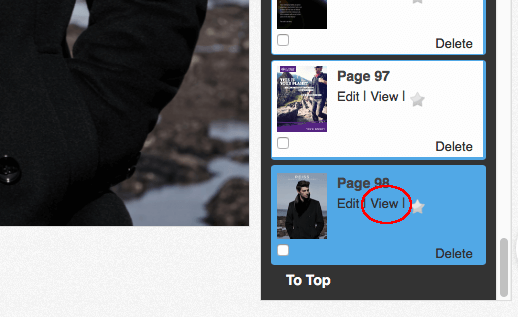
The [View] button as shown here is going to be the key to your first tests.
Via the [View] button, you'll test both that the ad:
- size eyeballs to the right dimensions
- link works
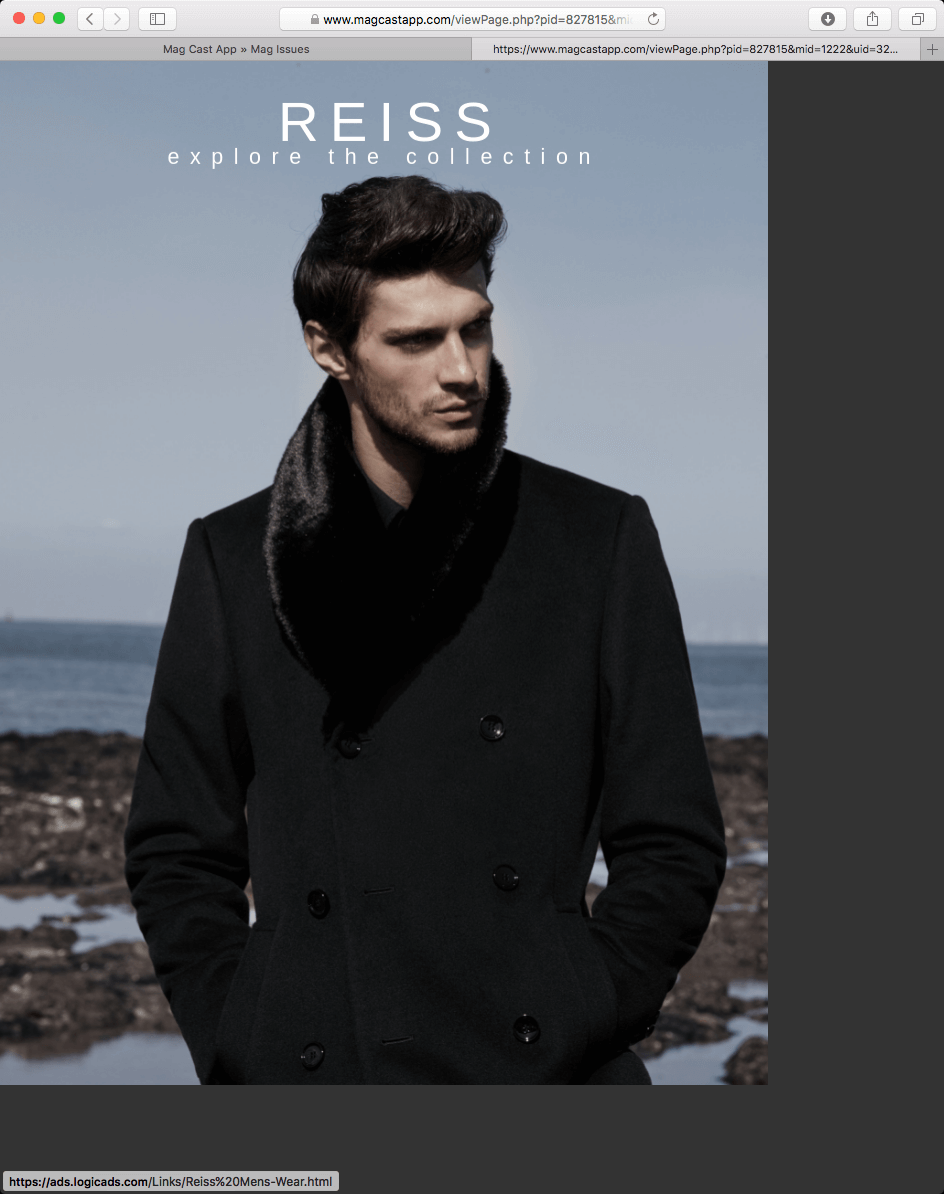
Here's what clicking [View] shows:
Looks good, so now we'll click anywhere on this page to make sure the link works.
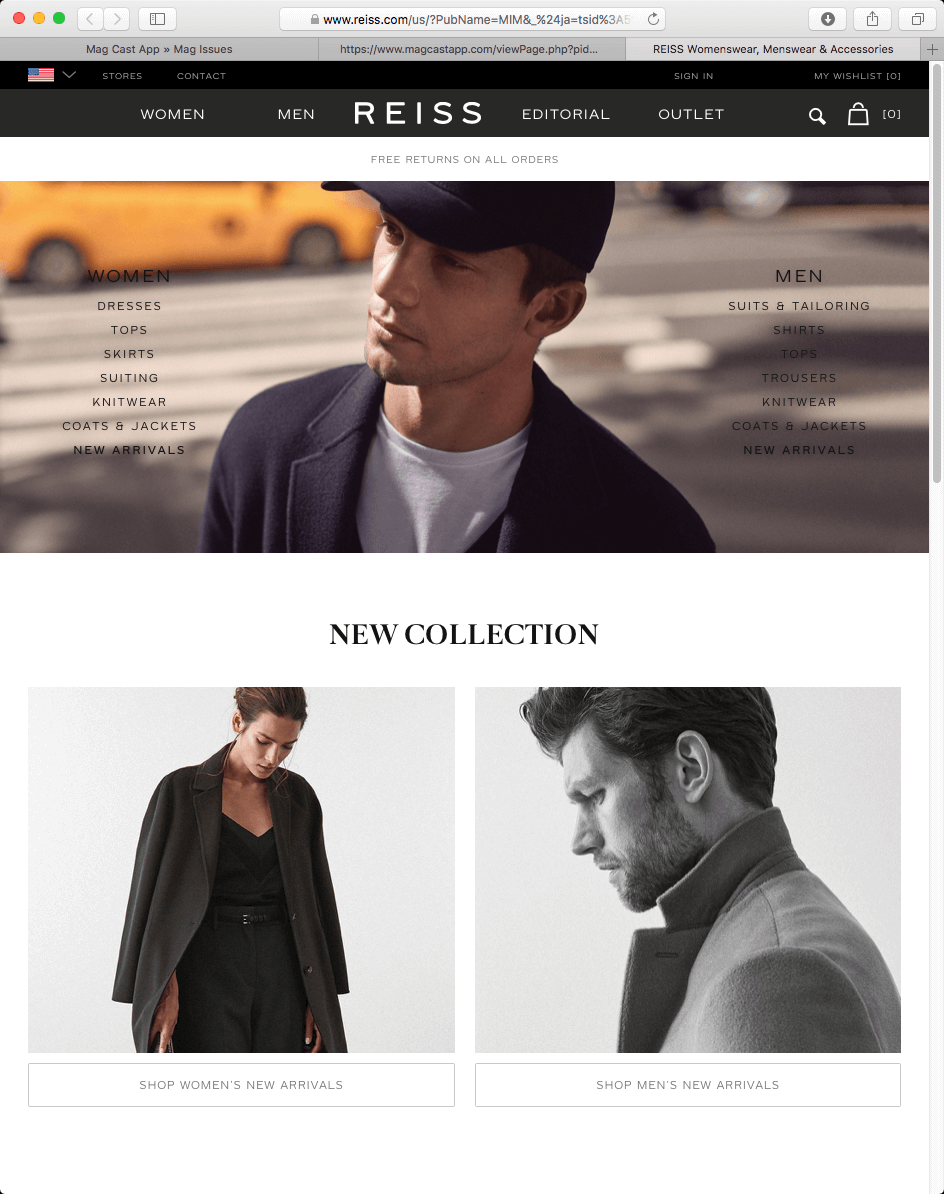
Bingo! Link goes to the right place. Move onto step 2.
Testing via the MagCast Test App / Publisher's Preview
If you haven't downloaded / updated this App on your iPad in the past few months, download it onto your iPad now.
Like your own magazine App, the MagCast Test App has had a truckload of updates and improvements since we took the helm.
Please be sure you have the latest version.
Testing in the Test App
Once you've got the hang of things, you don't need to do this after every ad you insert; however, you do need to test every ad you've inserted into your magazine.
The first thing to do is to upload a test of the issue you're working on so you can view it in the Test App, as shown here:
 Next, open the Test App on your iPad, download the issue you're working on, and swipe to the page the ad you're testing is on.
|
Here's what the ad looks like in the Test App:
|
Tapping the link takes you to this page:
|
OK, you're golden!
You just went from Full Page ad raw PNG creative to having a working, linked ad in your magazine that goes to the correct advertiser landing page in Safari.
|
|