Creating & Inserting Two Page Ad Spreads
The two-page spread (or story) is a glorious unit. Beautiful, high engagement, memorable, and potentially lucrative.
The process of inserting a 2 Page Spread into MagCast is identical to the one outlined above with a caveat inside the MagCastApp platform:
The left / first page MUST go onto an EVEN number;
the right / second page MUST go onto an ODD number.
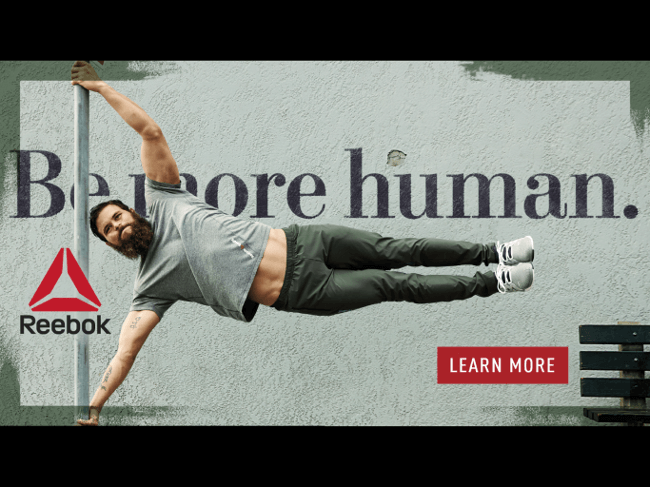
When you do it that way, you get something like:
Landscape
|
Portrait
|

|

|
|
(For the record, these are actual screenshots taken from my iPad Pro.)
|
Now that you see what the ad pages look like, let's go step-by-step to make it happen.
Creating a Two-Page Spread Step-by-Step
Step 1: Runtime - 4m12s
- List of tools / assets needed. (Hint: They're all free.)
- Downloading the source image from ShareASale
- Pulling your unique tracking link to the advertiser's page
- Using the Ad Tracking.xlsx spreadsheet.
Step 2a: Runtime - 1m29s
- Create a 2-page sized canvas in Gimp.
- Paste image into canvas
Step 2b: Runtime - 54s
- Draw horizontal selector box
- Set dimensions of box to exact values
- Crop image to left page area
Step 2c: Runtime - 1m28s
- Save left page image
- Resize image to make left thumbnail
- Save left thumbnail image
Step 2d: Runtime - 1m44s
- Undo resize and crop
- Draw horizontal selector box
- Set dimensions of box to exact values
- Crop image to right page area
|
- Save right page image
- Resize image to make right thumbnail
- Save right thumbnail image
|
Step 3: Runtime 1m5s
- Compress thumbnails and full size pages in TinyPNG.com
- Save compressed images.
Step 4: Runtime - 3m32s
- Create two new pages in the issue you're working on at MagCastApp.com
N.B. Left page of a 2-page spread MUST be an even number
-
Use [Settings] tool on each page to:
- Upload background image
- Upload thumnail image
- Disable automatic masthead insertion
|
-
Use [Link] tool on each page to:
- Draw link box onto page
- Insert tracking link from Ad Tracking spreadsheet
- Resize tappable area
- Save all changes with page master [Save] button
- Double-check that the link works
- Move onto next page and repeat prior steps
|
I realize this is totally new to some of you... that's why I made these videos, after all. :-)
The key thing here is this: if you follow these steps above, YOU can make two-page spreads both for articles and ads on. your. own.
No designer needed. No expensive software needed.
Even counting the time taken to explain what's going on, these videos in total are less than 15 minutes.
Once you get the hang of it, since you won't be explaining things as you go, you'll be making two-page spreads for your own magazine in ~5 minutes.
|
|